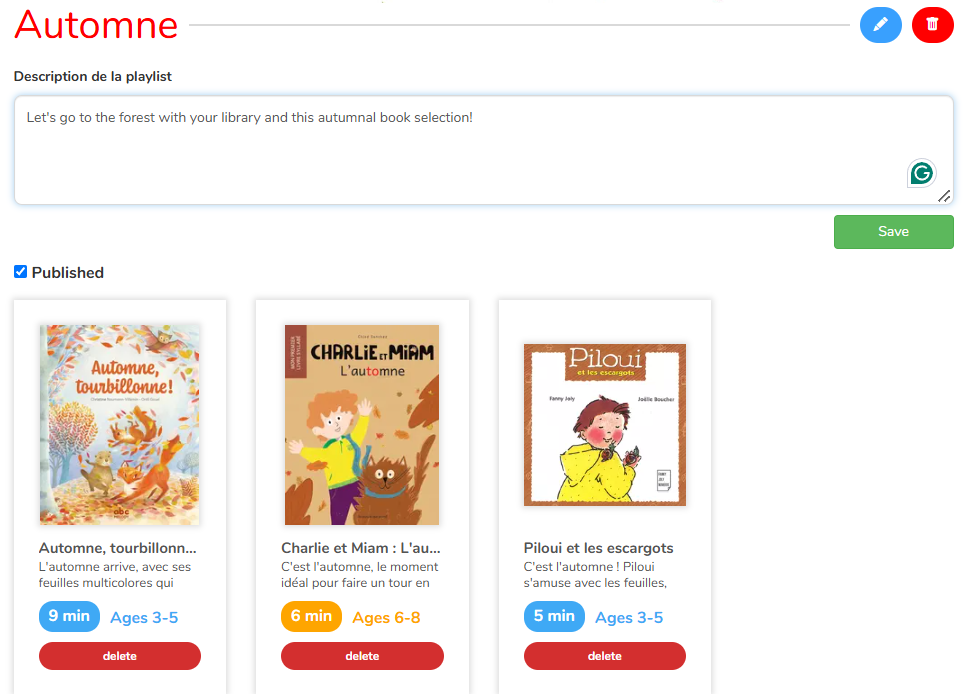
You want to create book playlists on Storyplay’r? It’s now possible! Add books to a reading list, depending on your favorites, their themes, which child it’s for, and so on… You’ll be able to find them quicker, but also listen to them all at once with the Screenless Mode.
How does it work?
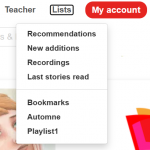 You’ll find the button « Lists » on the top bar, with all the preexisting playlists: Recommendations, New additions, Recordings, Last stories read, and Bookmarks.
As soon as you create a new list, it’ll be added here, under your Bookmarks. You’ll then access all your playlists in a few clicks!
How to add a book to a playlist?
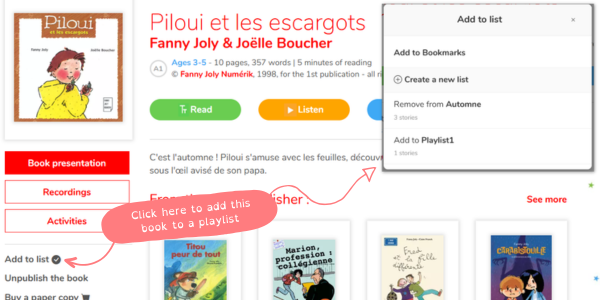
To create a playlist and add books, it’s easy! On your book of choice’s page, click on « Add to list » on the left of your screen, then choose which playlist you want to add it to; you can also create a new one :
Edit a playlist
Once your playlist created, you can change its title and add as many books as you wish. It’s also possible to delete the whole list, or remove specific books.
Listen to an entire playlist
Thanks to the Screenless Mode, it’s possible to listen to stories without the distraction of the screen. With the new functionality of playlists, you can then listen to entire playlists at once, without having to touch the screen! This option is great for long journeys by car, train or plane, but also in waiting rooms or even for a calm moment before a nap…
Discover our Screeless Mode to listen to your playlists.
Advanced settings for librarians
You’re a librarian and wish to create reading lists for your users? We added specific functionalities for you to help you communicate with them.
Adding a description
With a librarian account, you can create playlists and add a description to introduce them to your members. Especially useful if you create lists for special occasions or events, such as the holidays, summer break, the seasons, etc.
Make the list visible, or not
You also have a checkbox « Public » so that you can create the list at your own pace. The list will remain a draft whilst the box is unchecked; you can then take your time and perfect the list before making it accessible for everyone.